
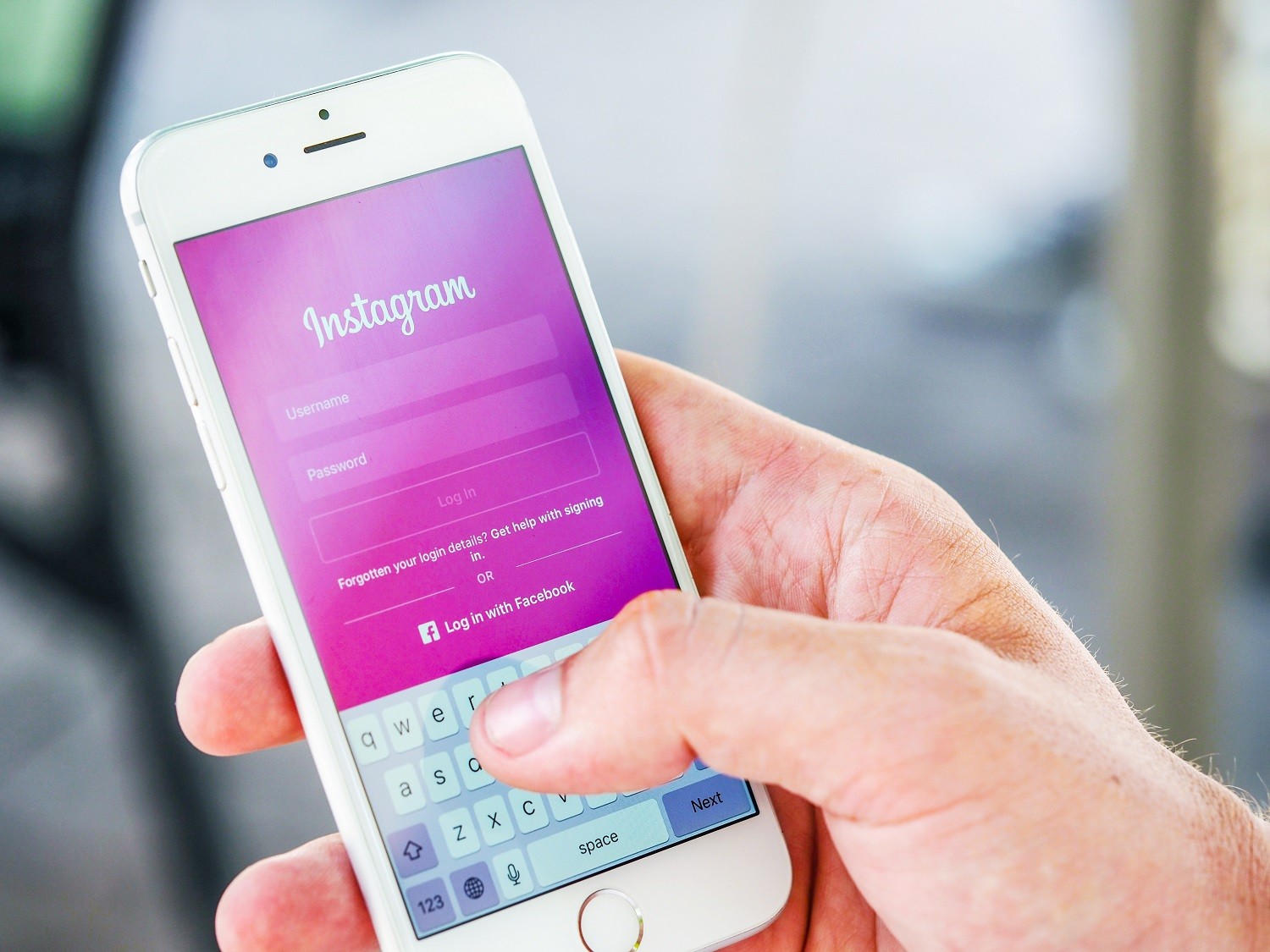
You already know the problem. You pick up your phone to check one thing. Forty minutes later, you’re watching someone unbox a Stanley cup in a parking lot. The average person spends 4 hours and 37 minutes on their phone every day. That’s 70 days a year. Staring at a screen.
Here’s the thing: most advice about screen time is useless. Delete all your apps. Buy a dumbphone. Move to a cabin. That works for about 48 hours. Then you need Maps, or your bank, or WhatsApp, and you’re back.
These six methods don’t require you to quit your phone. They change how you use it. Each one targets a specific failure mode — the exact moment your brain goes from using a tool to being used by it.
1. The Grayscale Screen (Cheapest, Fastest Fix)
This is the single most effective change you can make. It costs nothing. It takes 30 seconds. And it works on every phone.
Switch your display to grayscale. No color. Just black, white, and shades of gray.
Why this works: app designers use color to trigger dopamine. Red notification badges. Blue Instagram icons. Yellow Snapchat. Your brain processes color before meaning — you tap before you think. Remove the color, and the compulsion drops by about 40%. Researchers at Stanford found that grayscale mode reduced total phone pickups by 35% in a controlled study.
How to turn it on (iPhone)
Settings > Accessibility > Display & Text Size > Color Filters > Grayscale. Then set a triple-click shortcut on the side button to toggle it on and off.
How to turn it on (Android)
Settings > Digital Wellbeing > Wind Down > Grayscale. Or: Developer Options > Simulate Color Space > Monochromacy. Samsung users: Settings > Accessibility > Visibility Enhancements > Grayscale.
Keep it on for three days straight. You can still use Maps, read articles, answer texts. But you won’t randomly open Instagram to see what’s new. Because nothing looks new. It all looks like a newspaper.
Verdict: Do this today. If you only do one thing, do this. It’s free, instant, and reversible.
2. The 10-Minute Rule for Every App
Most people set screen time limits. They fail because they ignore the limit. “Five more minutes” becomes 25. Then you tap “Ignore Limit for Today” and feel guilty.
The problem isn’t willpower. It’s that the limit is a suggestion, not a structure.
Here’s the fix: set every social media app to a 10-minute daily limit. Not 30 minutes. Not an hour. Ten. That’s enough to check messages, reply to a comment, see what your friend posted. It’s not enough to scroll mindlessly.
On iPhone: Settings > Screen Time > App Limits > Add Limit. Pick Social, Entertainment, or specific apps. Set 10 minutes.
On Android: Settings > Digital Wellbeing > Dashboard > Tap the timer icon next to each app. Set 10 minutes.
When the timer hits zero, the app locks. You can override it, but you have to type a reason. That 5-second pause is enough for your prefrontal cortex to catch up with your impulse.
Common mistake: Setting limits on everything at once. Start with the three apps you open most. Usually Instagram, TikTok, and YouTube. After a week, add Twitter or Pinterest.
Verdict: 10 minutes per app, per day. No exceptions for the first 7 days. After that, you can adjust up or down by 5 minutes. Most people find 10 is actually plenty.
3. The One-Phone-Charge Rule
This is a hardware trick. It requires zero apps and zero settings changes.
Stop charging your phone overnight. Instead, charge it at a specific time during the day. Once. When it dies, it dies until tomorrow.
Here’s the exact system:
- Wake up with whatever battery you have from the previous day
- Use your phone normally
- When it hits 20%, plug it in
- Unplug when it hits 100%
- That’s it. No more charging until the same time tomorrow.
This works for two reasons. First, you can’t use your phone while it’s charging (or you shouldn’t). Second, it forces a natural break. When the battery dies at 3 PM, you’re done. You don’t reach for a charger — you go do something else.
Failure mode: People panic when the battery hits 10%. They scramble for a charger. The fix: carry a small power bank only for emergencies. The Anker 511 (around $25, 5,000mAh) is tiny. Use it only for essential calls or maps. Don’t use it to recharge your scrolling.
Verdict: One charge per day. Pick a time (noon works well). Your phone dies eventually. That’s the point.
4. The Notification Purge (Bold Opinion)
I’m going to say something that sounds extreme: you should have zero notifications on your lock screen. Zero. Not one.
Every notification is an interruption designed to pull you into an app. The average person gets 46 notifications per day. Each one breaks your focus for about 23 minutes. That’s nearly 18 hours of lost focus per week.
Here’s what to do:
- Go to Settings > Notifications
- Turn off ALL notifications from social media, games, shopping, and news apps
- Keep only: Phone calls, Messages (from contacts only), Calendar alerts, and one messaging app (WhatsApp, iMessage, or Signal — pick one)
- Everything else gets zero lock screen alerts. No banners. No sounds. No badges.
You’ll check your phone less because your phone isn’t screaming at you. You check it on your terms, not the app’s terms.
What about email? Turn off email notifications. Check email three times a day: morning, after lunch, before 4 PM. Nobody needs instant email. If it’s urgent, they’ll call.
Verdict: Zero lock screen notifications. Start today. Your brain will thank you by day three.
5. The Physical Barrier (When Software Fails)
Sometimes you need to make it physically harder to reach your phone. Software limits can be bypassed. A locked box cannot.
This isn’t about buying an expensive gadget. It’s about creating friction.
Low-cost methods that work:
- Put your phone in another room while you work. Not on your desk. Not in your pocket. In the kitchen drawer. Studies show that just having a phone in the same room reduces cognitive performance by 10%.
- Use a $10 kitchen safe. A timed lockbox. Set it for 30 minutes. Drop the phone in. Close the lid. You can’t get it out until the timer ends. The Ksafe Mini ($30) is the most popular model.
- Turn off the phone completely for 2 hours every evening. Not silent. Off. The act of turning it back on is enough friction to stop mindless checking.
When NOT to do this: If you have young children, elderly parents, or an on-call job. Physical barriers work best for people who live alone or have predictable schedules. If you need to be reachable, use the notification purge instead.
Verdict: Physical barriers are the nuclear option. Use them for specific blocks of time (deep work, dinner, sleep). Don’t keep your phone in your bedroom at night. Buy a $10 alarm clock instead.
6. The Replacement Habit (Not Just Removing, Replacing)
You can’t just take something away. You have to replace it with something else. If you delete Instagram but have nothing to do in the 15 minutes between meetings, you’ll reinstall it.
This is the most overlooked part of digital minimalism. You need a phone replacement activity that fits into the same 2-5 minute gaps where you’d normally scroll.
Good replacements (specific, portable, satisfying):
- A physical book or Kindle. Not an app. A device with no notifications. The Kindle Paperwhite ($130) is waterproof, has weeks of battery, and does nothing else.
- A small notebook and pen. Write down one thing you’re grateful for, or one idea, or a sketch. The Moleskine Classic Pocket ($16) fits in any bag.
- A puzzle or fidget toy. The Rubik’s Cube ($10) or a simple wooden puzzle. Keeps your hands busy without a screen.
- Walk. No phone. Just walk around the block for 5 minutes. Studies show a short walk resets attention better than scrolling.
How to make it stick: Keep the replacement item in the same place you’d usually keep your phone. If you reach for your phone on the coffee table, put the book there instead. If you scroll while waiting for coffee, keep the notebook in your coat pocket.
Verdict: Pick one replacement. Use it for 7 days straight every time you’d normally reach for your phone. After a week, it becomes automatic. The Kindle Paperwhite is the best single replacement because it feels like reading, not detoxing.
| Method | Cost | Time to Set Up | Difficulty | Best For |
|---|---|---|---|---|
| Grayscale screen | $0 | 30 seconds | Very easy | Anyone, immediate results |
| 10-minute app limits | $0 | 5 minutes | Easy | Social media scrollers |
| One-charge rule | $0 | 1 minute | Medium | People who charge overnight |
| Notification purge | $0 | 10 minutes | Easy | Anyone interrupted all day |
| Physical barrier | $10-$30 | 5 minutes | Hard | Deep work, sleep, study |
| Replacement habit | $10-$130 | 1 week of practice | Medium | Building long-term change |
Start with grayscale and the notification purge. Those two alone will cut your screen time by 30-50%. If you need more, add the one-charge rule. If you’re still struggling, the physical barrier and replacement habit will finish the job.
You don’t need to quit your phone. You need to stop letting it quit your attention.